
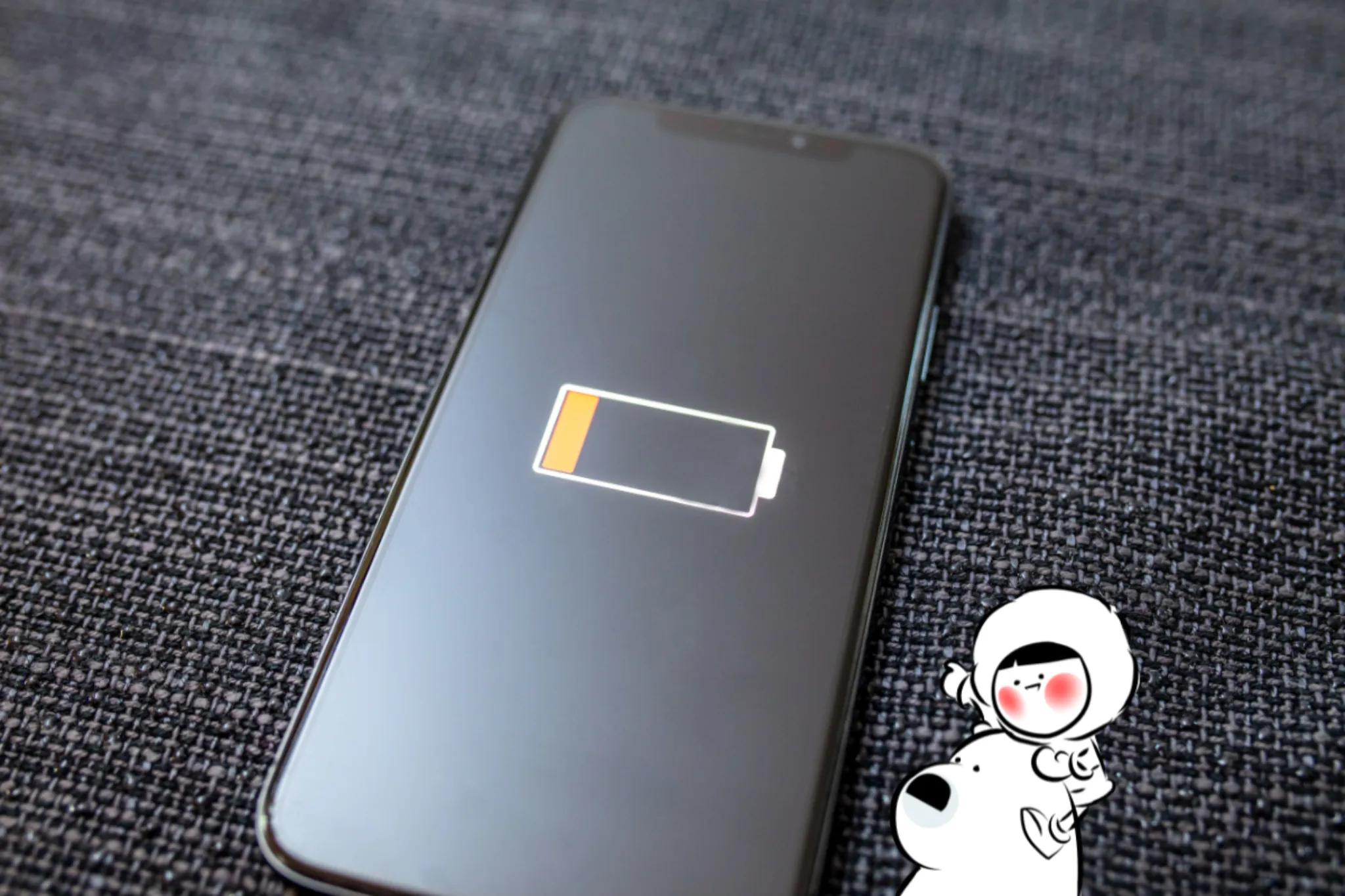
Low Power Mode reduces the amount of power your iPhone uses by limiting background activity and adjusting certain system settings. When enabled, it temporarily disables or reduces non‑essential features so your battery lasts longer until you can recharge.
Low Power Mode saves battery by reducing brightness, shortening Auto‑Lock time, pausing background processes like email fetching and app refresh, and limiting some performance features. These changes help extend battery life without affecting essential tasks like calls, messages, and internet access.
What Is Low Power Mode?
Low Power Mode is a built‑in iOS feature designed to extend battery life when your charge gets low. When activated, your iPhone temporarily limits background processes and reduces system performance to conserve energy.
You will usually see a prompt asking to enable Low Power Mode when your battery drops to 20%, and again at 10%, but you can also turn it on manually at any time.
How to turn on Low Power Mode
You can enable Low Power Mode in several ways.
1. From Settings
- iOS 17 / iOS 18: Settings > Battery > Low Power Mode
- iOS 26: Settings > Battery > Power Mode > Low Power Mode (on iPhone 15 and later)
2. From Control Center
- Open Control Center.
- Tap the battery icon to enable Low Power Mode.
3. Using Siri
You can also say:
“Hey Siri, turn on Low Power Mode.”
When the feature is active, the battery icon turns yellow, indicating your phone is prioritizing energy efficiency.
Low Power Mode automatically turns off once your battery charges to 80% or higher.
What Happens When Low Power Mode Is Turned On?
When you enable Low Power Mode, your iPhone begins reducing power consumption across several system functions.
You may notice a few changes immediately:
- Screen brightness may be slightly reduced
- The screen locks faster
- Some animations and visual effects are limited
- Certain background activities pause
Performance‑heavy tasks can feel slightly slower because the system is prioritizing battery efficiency rather than maximum speed.
Get Eskimo eSIM to stay connected globally
Need internet while travelling? Here's what we recommend:

Fixed data plans
- No speed reduction
- 2-year validity, unlimited data rollover
- Transfer data to anyone
- Personal hotspot


What Features Are Disabled in Low Power Mode?
Low Power Mode reduces or temporarily disables several features that normally run in the background.
These include:
- 5G connectivity: Turned off on most devices, although it may remain active during video streaming or large downloads on some models.
- Auto‑Lock: Set to 30 seconds.
- Display brightness: Reduced to save energy.
- Display refresh rate: Limited to 60Hz on iPhone models with ProMotion displays.
- Visual effects: Some animations and effects are disabled.
- iCloud Photos: Photo syncing temporarily pauses.
- Automatic downloads: Software updates and automatic app updates stop.
- Email fetch: Background email checks stop.
- Background App Refresh: Apps stop updating content in the background.
These adjustments reduce the amount of processing and network activity your iPhone performs, which helps extend battery life.
Does Low Power Mode Actually Save Battery?
Yes. Low Power Mode can significantly extend battery life by reducing background activity that normally drains energy.
Many apps constantly update content in the background, check for notifications, or sync data with the cloud. When Low Power Mode pauses these processes, your phone uses less power overall. While it cannot fix an aging battery, it can help your device last longer throughout the day.
Should You Leave Low Power Mode On All the Time?
Low Power Mode is safe to use whenever you want, but it is not always ideal for daily use.
Because the feature limits background activity and performance, you may notice:
- Slower app updates
- Fewer background notifications
- Reduced screen brightness
- Lower display refresh rate on some models
For most people, the best strategy is to use Low Power Mode when needed, such as:
- During long travel days
- When your battery drops below 30–40%
- When you do not have easy access to a charger
How to Use Low Power Mode While Traveling
Low Power Mode becomes especially useful when you are traveling and relying heavily on your phone.
Here are a few practical tips:
- Turn it on before leaving your hotel or airport lounge
- Download offline maps or boarding passes
- Keep screen brightness moderate
- Close battery‑heavy apps when not in use
If you rely on navigation, ride‑hailing, and messaging apps while abroad, staying connected is just as important as saving battery. Using an eSIM like Eskimo can simplify mobile data access when traveling, so you can stay online without swapping SIM cards.
Low Power Mode vs Normal Mode
| Feature | Normal Mode | Low Power Mode |
| Battery icon | White or green | Yellow |
| CPU performance | Full performance | Reduced |
| Auto‑Lock | User setting | 30 seconds |
| Background App Refresh | Enabled | Disabled |
| Email fetch | Enabled | Disabled |
| iCloud Photos | Active | Paused |
| ProMotion refresh rate | Up to 120Hz | Up to 60Hz |
| Automatic downloads | Enabled | Disabled |
FAQs
Does Low Power Mode make your iPhone charge faster?
Low Power Mode does not increase charging speed. However, because your phone uses less power while charging, the battery may fill more efficiently if you are not actively using the device.
Does Low Power Mode slow down charging?
No. Charging speed mainly depends on your charger, cable, and battery temperature. Low Power Mode simply reduces background activity while the phone is charging.
Does Low Power Mode affect battery health?
No. Low Power Mode is only a software setting that manages how your phone uses energy. It does not damage the battery or reduce long‑term battery health.
Why is my iPhone battery yellow?
A yellow battery icon means Low Power Mode is active. The icon will return to white or green once the feature is turned off or the battery reaches 80% charge.
When does Low Power Mode turn off automatically?
Low Power Mode automatically turns off when your iPhone charges to 80% or higher.
Conclusion
Low Power Mode is one of the simplest ways to extend your iPhone’s battery life. Reducing background activity, limiting display performance, and pausing non‑essential processes, it helps your device last longer when power is running low.
For travelers who rely on their phones for navigation, communication, and booking confirmations, managing battery life is essential. Combining Low Power Mode with reliable global connectivity can help keep your phone working throughout the day. If you want an easy way to stay online abroad, you can start with Eskimo’s free 500MB global data trial.